
Joining Bitwarden as a New User
Joining
In order to join Bitwarden, you should first receive an invite email.
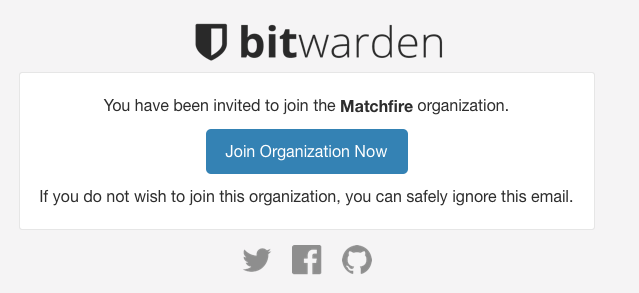
Once you click Join Organization Now, you will want to click Create Account.
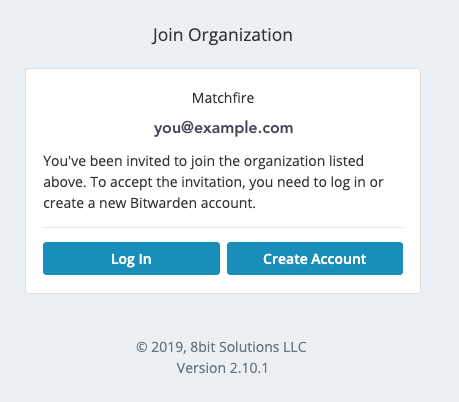
Fill out your info on this page, select a password that is both secure and memorable. Do not use any generic password the company has used in the past. If you lose the password your account will need to be deleted and re-added.
Once you have created your account, you can Slack Miranda, Nance, Sally, or Cameron in order to get your account activated.
Once your account is activated you should see Collections on the Bitwarden homepage. Any passwords you are able to access will be here and you should add new passwords inside of these Collections.
Password Auto-fill
Now that you have joined, it is a good idea to get the Browser Extension so you can have passwords fill out automatically for you.
You can click your browser icon below to get the Extension for it.





Once you have it installed, click the Bitwarden Icon in your browser to bring up the following screen

Click the Gear Icon at the top left to bring up the settings. Set the Server URL to https://bitwarden.matchfire.com and click Save.
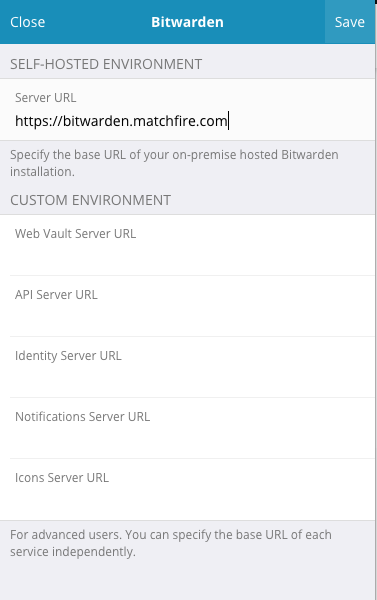
You can now log into Bitwarden with your email and the password you created earlier.
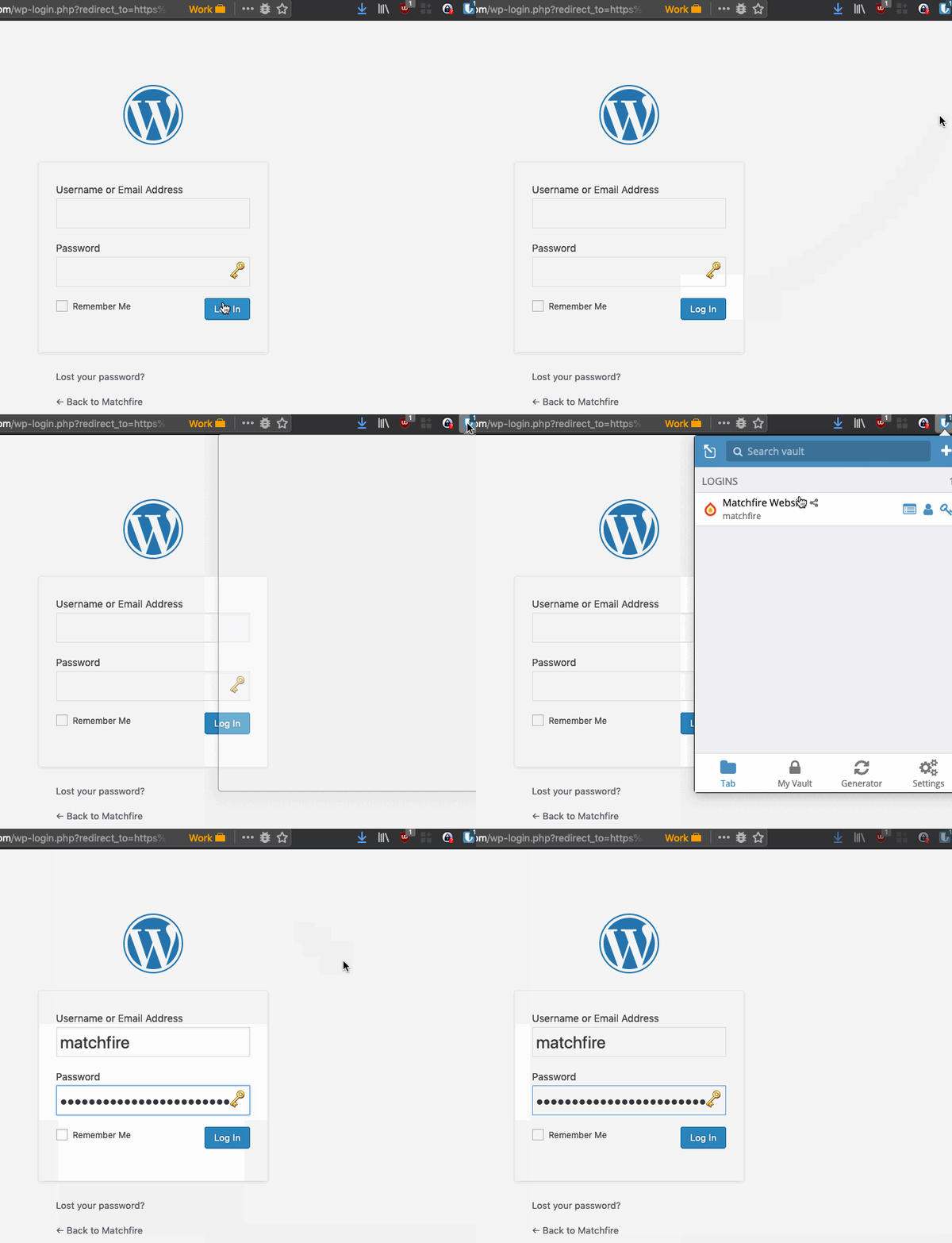
When you are on a page that you have access to a login for, you will see a number by the Bitwarden icon and can click the extension to autofill.
(Optional) Remember My Password and/or Using a PIN to unlock instead of your password
Once logged in with the extension, you can click Settings at the bottom and adjust the Lock Options as well as set Unlock with PIN.
You can set Lock Options to Never if you don't want to have to type your password again for the extension.
You can also set a PIN by checking the Unlock with PIN box, you can uncheck "Lock with master password on browser restart" if you want to only use the PIN for the browser.
No Comments